Screen Annotation Extensions Like Awesome Screenshot For Capturing And Annotating Screens
Taking screenshots used to be simple. You pressed a button. You saved an image. Done. But today, screenshots do much more. They explain ideas. They teach steps. They solve problems. They tell stories.
That is where screen annotation extensions come in. Tools like Awesome Screenshot turn basic screen grabs into powerful communication tools. You can capture, edit, highlight, blur, and share in minutes. No design degree needed.
TLDR: Screen annotation extensions let you capture and mark up your screen quickly and easily. They are perfect for work, school, tutorials, and support. Tools like Awesome Screenshot, Lightshot, Loom, and Nimbus make explaining ideas faster and clearer. If you share information visually, these tools save time and reduce confusion.
What Are Screen Annotation Extensions?
Table of Contents
A screen annotation extension is a small browser add-on. It lets you:
- Capture your screen
- Edit the screenshot
- Add text and shapes
- Highlight important parts
- Share instantly
Think of it like a digital highlighter and marker for your screen.
Instead of writing long emails, you can show exactly what you mean. Circle a button. Draw an arrow. Add a quick note. Done.
Why Are They So Popular?
Because people are busy.
Long instructions are confusing. Walls of text are tiring. But a simple screenshot with annotations? That is clear. And fast.
Here is why people love these tools:
- They save time. Show. Do not just tell.
- They reduce mistakes. Visual guides are easier to follow.
- They improve collaboration. Teams understand each other faster.
- They are simple to use. Most work with one click.
Meet Awesome Screenshot
Awesome Screenshot is one of the most popular tools in this space. And for good reason.
It allows you to capture:
- The visible part of a page
- A selected area
- An entire scrolling webpage
- Your desktop screen
After capturing, you enter the editing mode.
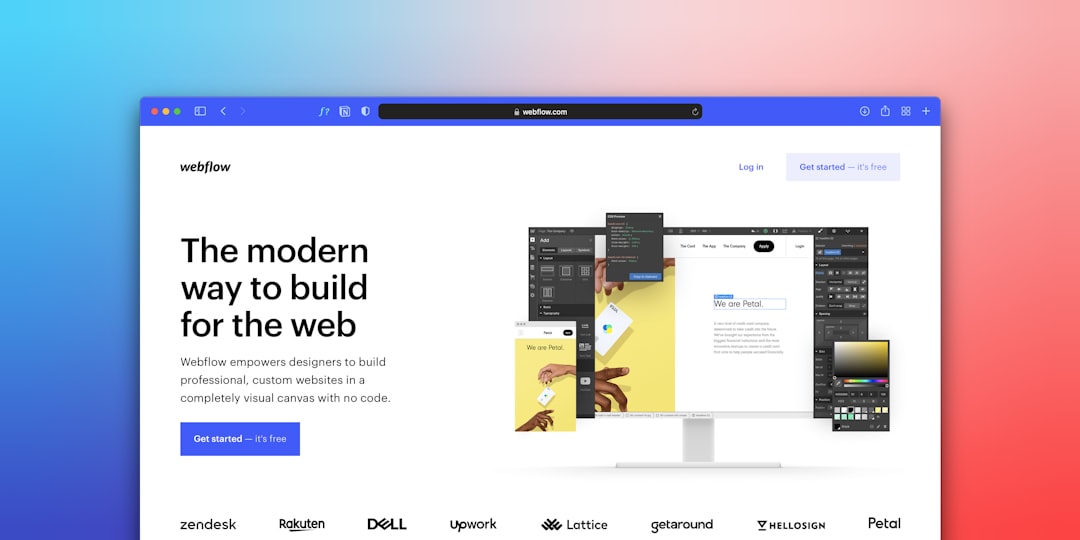
Inside, you can:
- Add arrows and rectangles
- Draw freehand
- Insert text
- Blur sensitive information
- Highlight key sections
The interface is clean. The tools are easy to understand. You do not need a manual.
It also allows screen recording. That is helpful for tutorials and walkthroughs.
Other Popular Screen Annotation Tools
Awesome Screenshot is great. But it is not alone. Several other tools offer similar features.
1. Lightshot
Lightshot is simple. Very simple.
You select an area. You annotate. You save or share.
It is lightweight and fast. But it does not offer full-page scrolling capture like some competitors.
2. Nimbus Screenshot
Nimbus is feature-rich.
- Full-page captures
- Video recording
- Cloud storage
- Team collaboration features
It feels more business-focused. Great for teams.
3. Loom
Loom is mainly a video tool. But it includes screen capture and basic annotation.
It is perfect for:
- Explainer videos
- Quick feedback
- Remote teams
Loom shines in video. Static screenshot editing is simpler.
4. GoFullPage
This tool focuses on one thing. Full-page screenshots.
It does that job very well. But its editing tools are limited.
Comparison Chart
| Tool | Full Page Capture | Annotation Tools | Screen Recording | Best For |
|---|---|---|---|---|
| Awesome Screenshot | Yes | Advanced | Yes | All purpose use |
| Lightshot | No | Basic | No | Quick simple edits |
| Nimbus Screenshot | Yes | Advanced | Yes | Teams and business |
| Loom | Partial | Basic | Yes strong | Video communication |
| GoFullPage | Yes | Minimal | No | Long webpage capture |
When Should You Use Screen Annotation Extensions?
The short answer? Almost every day.
Here are common use cases:
Customer Support
Instead of saying “Click the blue button in the top right corner,” you show it.
Circle it. Add text. Send.
Customers understand immediately.
Teaching and Tutorials
Teachers use screenshots to guide students.
Online courses rely on visual steps.
Annotations make lessons easier to follow.
Team Collaboration
Remote work is common now.
Colleagues are not sitting next to each other. That means more written communication.
A marked-up screenshot removes confusion.
Bug Reporting
Developers love annotated screenshots.
You can:
- Highlight errors
- Point to broken features
- Add notes about what went wrong
This speeds up fixes.
Key Features To Look For
Not all tools are equal. When choosing a screen annotation extension, look for these features:
- Full page scrolling capture
- Easy sharing options
- Blur tool for privacy
- Text and arrow tools
- Cloud storage
- Screen recording
Also consider ease of use. If it is confusing, you will not use it.
Benefits Over Traditional Screenshot Methods
You could use your computer’s built-in screenshot tool.
But you would miss many advantages.
1. Faster Workflow
Extensions sit in your browser.
One click. Capture. Edit. Share.
2. No Separate Editing Software
You do not need Photoshop.
You do not need complicated apps.
Everything is built in.
3. Instant Sharing
Many tools create a shareable link instantly.
No attachments. No downloads.
4. Better Privacy Controls
The blur tool is a lifesaver.
You can hide:
- Email addresses
- Passwords
- Personal data
Tips For Better Annotations
Annotations are helpful. But only when done right.
Keep these tips in mind:
- Be clear. Do not overcrowd the image.
- Use color wisely. Red for problems. Green for confirmation.
- Keep text short. Small notes work best.
- Highlight only what matters.
Less is more.
A messy screenshot confuses people.
Are There Any Downsides?
No tool is perfect.
Here are a few minor drawbacks:
- Some advanced features require payment.
- Cloud storage limits may apply.
- Too many annotations can clutter the image.
But for most users, the benefits outweigh the limitations.
Who Should Use These Tools?
Almost everyone.
- Students creating assignments
- Teachers building lessons
- Marketers sharing campaign feedback
- Developers reporting bugs
- Customer support teams solving issues
- Freelancers explaining revisions
If you use a computer daily, you will benefit.
The Future Of Screen Annotation
Screen tools are getting smarter.
Some now include:
- AI-powered suggestions
- Auto-highlighting
- Voice-to-text annotations
- Instant cloud syncing
Collaboration will become even easier.
Imagine shared live annotations. Real-time markup. Interactive feedback.
That future is close.
Final Thoughts
Communication should be simple.
Screen annotation extensions help make it simple.
They turn plain screenshots into clear instructions. They reduce back-and-forth messages. They save time.
Tools like Awesome Screenshot and its competitors bring powerful visual communication to everyday users.
You do not need to be technical. You do not need design skills.
You just need to click. Capture. Annotate. Share.
And suddenly, everything becomes easier to understand.