How to Fix Ubisoft Being Stuck in Offline Mode in Far Cry 6
Far Cry 6 is designed to deliver a seamless open-world experience, but many players encounter a frustrating issue where Ubisoft Connect becomes stuck in offline mode. This prevents access to online features such as co-op play, cloud saves, and rewards. While the issue can seem complex, it is usually tied to connectivity settings, account synchronization, or launcher configuration problems. Fortunately, most players can resolve it by following a series of structured troubleshooting steps.
TLDR: Ubisoft Connect getting stuck in offline mode in Far Cry 6 is usually caused by internet connection issues, outdated software, firewall restrictions, or launcher cache corruption. Restarting the launcher, verifying game files, clearing the cache, and ensuring network settings are correct often fix the problem. Adjusting firewall permissions and checking Ubisoft server status may also be necessary. In persistent cases, reinstalling Ubisoft Connect resolves the issue.
Understanding Why Ubisoft Connect Gets Stuck in Offline Mode
Table of Contents
Before attempting fixes, it helps to understand why the issue occurs. Ubisoft Connect operates as a bridge between the player’s system and Ubisoft’s online services. If any interruption occurs during authentication, the launcher may default to offline mode.
Common causes include:
- Unstable internet connection
- Ubisoft server maintenance or outages
- Corrupted launcher cache files
- Firewall or antivirus interference
- Outdated Ubisoft Connect client
- Incorrect system date and time settings
Step 1: Check Ubisoft Server Status
The first step involves verifying whether the problem originates from Ubisoft’s servers rather than the player’s setup.
Players should:
- Visit Ubisoft’s official server status page.
- Check Ubisoft Support social media channels for outage notices.
- Look for community reports of similar issues.
If servers are under maintenance, waiting until services are restored is the only solution.
Step 2: Restart Ubisoft Connect Properly
Sometimes, the launcher simply fails to authenticate correctly on startup. Restarting it correctly often solves the issue.
Proper restart method:
- Close Far Cry 6 completely.
- Exit Ubisoft Connect from the system tray (right-click and choose Exit).
- Open Task Manager and ensure no Ubisoft processes are running.
- Restart Ubisoft Connect as Administrator.
Running the launcher as administrator ensures it has the required permissions for online authentication.
Step 3: Verify Internet Connection Stability
Even if the system appears connected, unstable DNS or packet loss can force the launcher into offline mode.
Players should test their connection by:
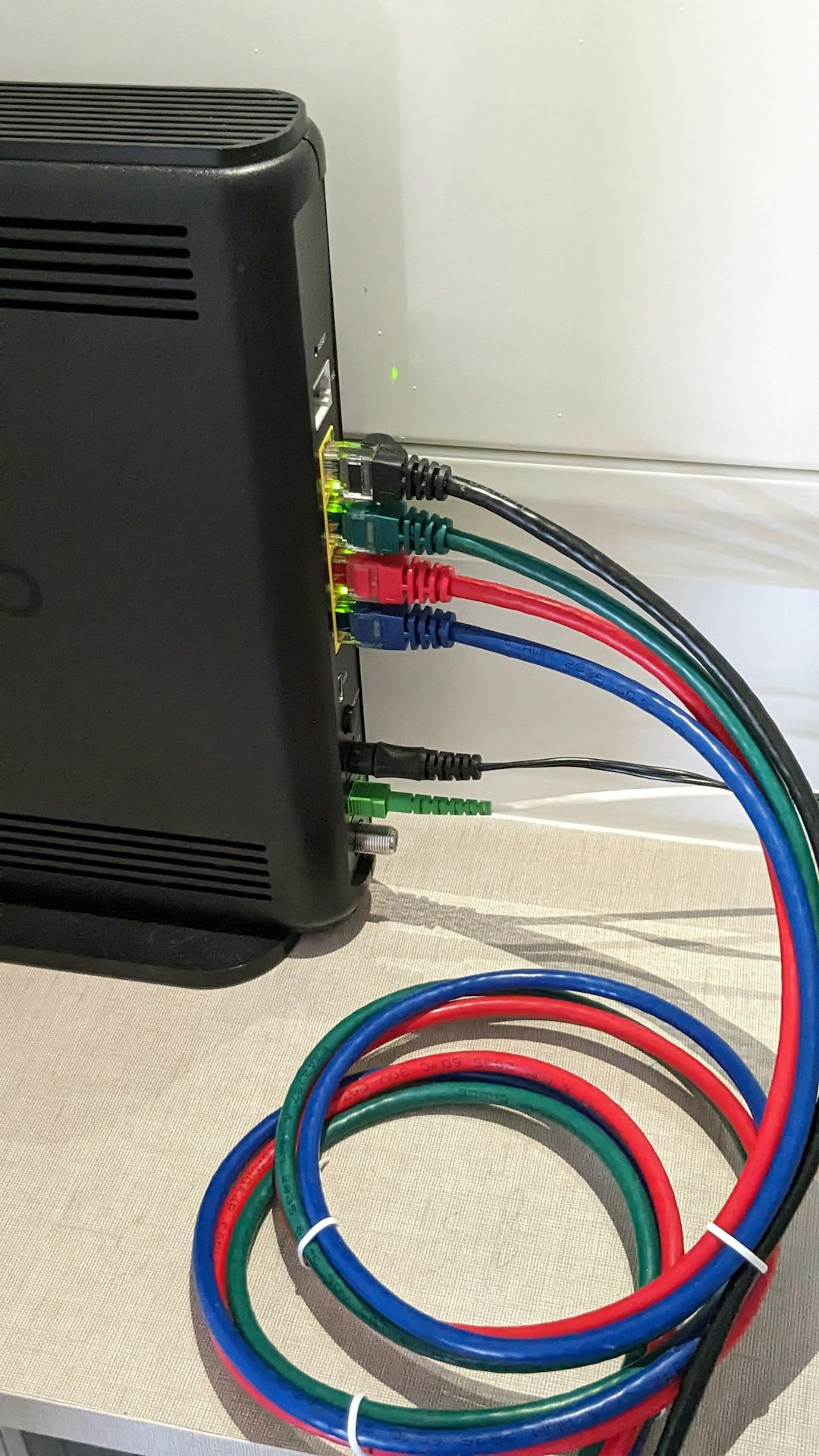
- Restarting their router and modem.
- Using a wired Ethernet connection instead of Wi-Fi.
- Running a speed test and checking for packet loss.
- Flushing DNS via Command Prompt using ipconfig /flushdns.
If the connection is unstable, switching DNS servers (for example, to Google DNS 8.8.8.8 and 8.8.4.4) may improve reliability.
Step 4: Disable Offline Mode Manually
Ubisoft Connect has a manual offline mode toggle that might have been enabled accidentally.
To disable offline mode:
- Open Ubisoft Connect.
- Click the menu icon in the top-left corner.
- Select Go Online if available.
If the option is grayed out, authentication is failing at runtime, requiring further troubleshooting.
Step 5: Clear Ubisoft Connect Cache
Corrupted cache files are one of the most common causes of persistent offline mode issues.
How to Clear Cache:
- Close Ubisoft Connect completely.
- Navigate to the Ubisoft Game Launcher installation folder.
- Locate the cache folder.
- Delete the contents inside the cache folder (do not delete other folders).
- Restart the launcher.
This process forces the application to generate fresh configuration files.
Step 6: Check Firewall and Antivirus Settings
Overly restrictive firewall or antivirus settings can block Ubisoft Connect’s online authentication requests.
Players should:
- Add Ubisoft Connect to firewall exceptions.
- Allow Far Cry 6 through Windows Defender.
- Temporarily disable third-party antivirus software for testing.
- Ensure ports used by Ubisoft are not blocked (TCP: 80, 443).
If disabling antivirus resolves the issue, permanent exceptions must be added.
Step 7: Verify Far Cry 6 Game Files
Corrupted or missing files can interfere with authentication checks.
Verifying Files:
- Open Ubisoft Connect.
- Go to the Games tab.
- Select Far Cry 6.
- Click Properties.
- Choose Verify Files.
The launcher will automatically repair any damaged files.
Step 8: Update Ubisoft Connect
Running an outdated version of Ubisoft Connect often creates compatibility issues.
To ensure the latest version:
- Check for automatic updates upon startup.
- Manually download the latest installer from Ubisoft’s official site.
- Reinstall over the existing version if necessary.
Step 9: Reinstall Ubisoft Connect (Last Resort)
If all other solutions fail, a clean reinstall may be required.
Clean Reinstallation Steps:
- Uninstall Ubisoft Connect via Control Panel.
- Delete leftover Ubisoft folders in Program Files and AppData.
- Restart the computer.
- Download and install a fresh copy.
- Log in and launch Far Cry 6.
This completely resets authentication components and resolves deep corruption issues.
Quick Comparison of Fix Methods
| Fix Method | Difficulty | Time Required | Effectiveness |
|---|---|---|---|
| Restart Launcher | Easy | 2 Minutes | High for minor glitches |
| Check Servers | Easy | 2 Minutes | Essential diagnostic |
| Clear Cache | Medium | 5 Minutes | Very High |
| Firewall Adjustment | Medium | 10 Minutes | High |
| Verify Files | Easy | 10–20 Minutes | Moderate to High |
| Reinstall Launcher | Advanced | 20–30 Minutes | Very High |
Additional Preventative Tips
To avoid future offline mode issues, players can follow these preventative practices:
- Keep Ubisoft Connect updated regularly.
- Avoid force-closing the launcher during updates.
- Maintain stable wired internet for online sessions.
- Keep system date and time synchronized automatically.
- Exclude Ubisoft Connect from aggressive antivirus scanning.
Consistent maintenance dramatically reduces the likelihood of recurring connectivity problems.
FAQ
Why does Ubisoft Connect keep switching to offline mode?
This usually happens due to unstable internet, authentication failure, or firewall interference. Clearing the cache or restarting the launcher resolves the issue in most cases.
Can Ubisoft server issues cause offline mode?
Yes. If Ubisoft’s servers are undergoing maintenance or experiencing outages, players may be forced into offline mode until services are restored.
Will reinstalling Far Cry 6 fix offline mode?
Reinstalling the game is rarely necessary. The problem typically lies with Ubisoft Connect, not Far Cry 6 itself.
Does offline mode affect saved progress?
Offline mode prevents cloud synchronization, but local saves remain intact. Progress made offline syncs once the connection is restored.
Is it safe to delete Ubisoft Connect cache files?
Yes. Deleting only the contents of the cache folder is safe and forces the application to rebuild necessary temporary files.
Why is the “Go Online” option grayed out?
This indicates a failed authentication attempt. The launcher cannot reach Ubisoft servers, often due to network settings or firewall restrictions.
By following these structured troubleshooting steps, most players can restore full online functionality in Far Cry 6 and enjoy the game’s cooperative and cloud-enabled features without interruption.