Send Later Not Showing on iPhone? Fix It
We’ve all been there. You write the perfect message. You want to send it later. You look for the Send Later option on your iPhone… and it’s just not there. Annoying, right? Don’t worry. This guide will help you understand why it happens and how to fix it. Fast and easy.
TLDR: If “Send Later” is not showing on your iPhone, it’s usually because of an old iOS version, wrong settings, or using the wrong app. Update your phone, check your Mail or Messages app settings, and make sure you’re using the correct method to schedule messages. Sometimes a quick restart fixes everything. If not, there are simple workarounds you can try.
What Is “Send Later” on iPhone?
Table of Contents
Send Later lets you write a message now and send it at a specific time in the future. No need to wake up early. No need to remember later. Your iPhone does the work.
This feature is available in:
- Apple Mail (iOS 16 and later)
- iMessage (iOS 18 and later, depending on region and updates)
If you don’t see it, something is off. Let’s find out what.
1. Check Your iOS Version First
This is the most common issue.
The Send Later feature only works on newer iOS versions. If your iPhone is running older software, the option simply won’t appear.
How to check:
- Open Settings
- Tap General
- Tap About
- Look at iOS Version
If you’re below iOS 16 (for Mail) or the required version for Messages:
Update your iPhone:
- Go to Settings
- Tap General
- Select Software Update
- Install available updates
Tip: Make sure you’re connected to WiFi and have enough battery.
2. You’re Not Using the Right App
This one surprises many people.
The Send Later option does not appear everywhere. For example:
- It works in Apple Mail
- It may not work in third party email apps like Gmail or Outlook (unless they have their own feature)
- It works differently in Messages
If you’re using Gmail inside the Gmail app, the scheduling feature lives inside Gmail’s own menu. Not Apple’s.
Quick Comparison Chart
| App | Has Native Send Later? | Where to Find It |
|---|---|---|
| Apple Mail | Yes (iOS 16+) | Press and hold Send button |
| Apple Messages | Yes (newer iOS versions) | Long press Send arrow |
| Gmail App | Yes | Three dots menu |
| Outlook App | Yes | Delay send settings |
If you don’t see it, make sure you’re pressing and holding the Send button. Not just tapping it.
3. You’re Tapping Instead of Long Pressing
This one is simple.
In Apple Mail, you have to press and hold the blue send arrow.
If you just tap it, the email sends instantly.
When done correctly, you will see options like:
- Send Now
- Send at 9:00 PM
- Send Later…
If nothing pops up, move on to the next fix.
4. Screen Time Restrictions Might Be Blocking It
Yes. Screen Time can interfere.
If content restrictions are enabled, some features may be limited.
How to check:
- Go to Settings
- Tap Screen Time
- Select Content & Privacy Restrictions
- Temporarily turn it off and test
If Send Later suddenly appears, that was the issue.
5. Mail Account Is Not Properly Synced
If you’re using a third party email account inside Apple Mail, syncing problems can hide features.
Try this:
- Go to Settings
- Tap Mail
- Select Accounts
- Tap your email account
- Turn off Mail
- Wait 10 seconds
- Turn it back on
This refreshes the connection.
You can also remove and re add the account completely.
6. Restart Your iPhone
Yes. The classic solution.
It sounds boring. But it works.
A quick restart can fix:
- Missing features
- App glitches
- UI bugs
- Temporary update errors
Turn it off. Wait 20 seconds. Turn it back on.
Check again.
7. Force Close the App
Sometimes the Mail or Messages app just needs a reset.
How:
- Swipe up from the bottom (or double click Home button)
- Find the app
- Swipe it up to close
- Reopen it
Now test Send Later again.
8. Your Time and Date Settings Are Wrong
This one is sneaky.
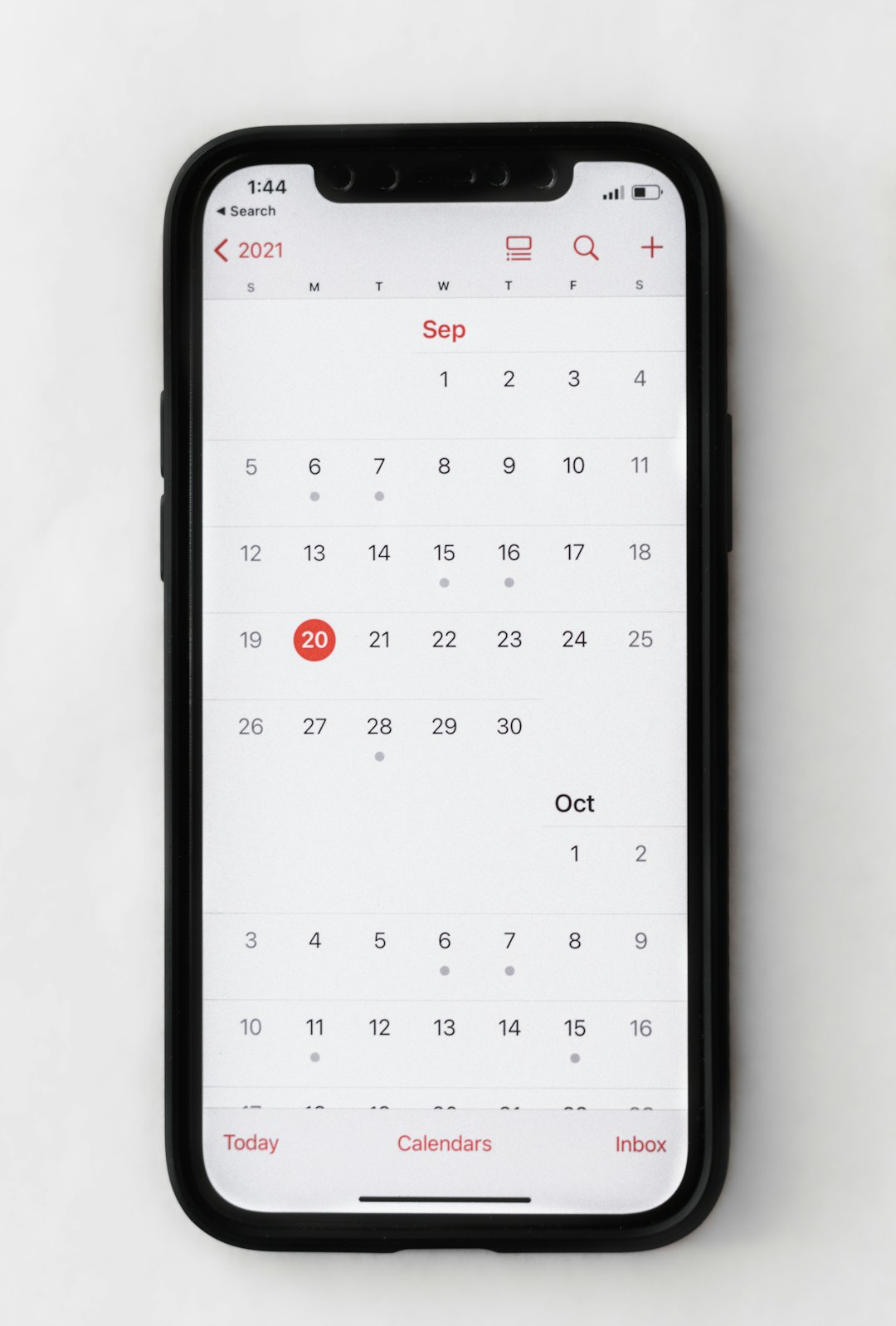
If your phone has the wrong time zone or manual clock settings, scheduled sending may not work correctly.
Fix it:
- Go to Settings
- Tap General
- Select Date & Time
- Turn on Set Automatically
Now try scheduling again.
9. Network Problems
Scheduled messages still need a stable connection.
If:
- You’re in Airplane mode
- WiFi keeps dropping
- Cellular data is off
The feature may not work properly.
Check your signal. Try another network.
10. Try a Workaround (If Nothing Works)
If Send Later refuses to appear, you still have options.
Option A: Use the Reminders App
Set a reminder to send the message manually at a certain time.
Simple. Old school. Works every time.
Option B: Use Shortcuts Automation
You can create an automation that sends a message at a certain time.
Steps:
- Open Shortcuts
- Tap Automation
- Select Create Personal Automation
- Choose Time of Day
- Add action for Send Message
This works great for recurring texts.
Option C: Use Third Party Apps
Apps like Gmail or Outlook often have built in scheduling features that may be more reliable.
When to Contact Apple Support
If:
- Your iPhone is fully updated
- All settings are correct
- You’ve restarted and reset
- The feature is still missing
There may be a deeper system bug.
Contact Apple Support or visit an Apple Store.
Quick Checklist
Before you panic, run through this list:
- ✅ Updated to latest iOS
- ✅ Using Apple Mail or supported app
- ✅ Long pressing Send button
- ✅ Restarted iPhone
- ✅ Checked Screen Time restrictions
- ✅ Verified date and time settings
- ✅ Stable internet connection
Most of the time, one of these fixes solves it in under five minutes.
Why Send Later Is Worth Fixing
This feature is small. But powerful.
It helps you:
- Send birthday messages on time
- Email clients during work hours
- Avoid late night texting
- Stay professional
- Be more organized
Once it works, you’ll use it all the time.
Final Thoughts
If Send Later is not showing on your iPhone, don’t stress. It’s usually something simple. Most often, it’s an outdated iOS version or the wrong way of pressing the send button.
Update. Restart. Check settings. Test again.
Your future self will thank you when that perfectly timed message sends automatically. Right on schedule. 😉