Why Is Offline Video Playback Lagging? Causes and Fixes
Offline video playback is often assumed to be smooth and immune to the hiccups of streaming, yet many users experience stuttering, audio delays, frame drops, or complete freezing even when watching downloaded content. This issue can occur on smartphones, laptops, tablets, smart TVs, and even professional workstations. Despite the absence of internet dependency, offline video playback relies heavily on hardware performance, file integrity, codec compatibility, and system optimization.
TLDR: Offline video lag is usually caused by hardware limitations, incompatible codecs, high-resolution files, corrupted downloads, insufficient storage speed, or outdated drivers and software. Even powerful devices can struggle if they are decoding complex formats inefficiently. Fixing the issue typically involves updating drivers, converting video formats, checking storage health, optimizing system resources, or using a better media player. Identifying the underlying cause is key to achieving smooth and stable playback.
Understanding Why Offline Playback Can Lag
Table of Contents
When watching a video offline, your device must decode the video and audio data in real time. This process requires processing power, memory bandwidth, and compatible decoding tools known as codecs. If any part of that chain underperforms, playback suffers.
Contrary to popular belief, removing the internet from the equation does not eliminate performance requirements. In many cases, high-quality downloaded videos (such as 4K HDR files) demand more resources than streamed versions, because streaming services dynamically adjust bitrate to match device capability. Offline files, by contrast, are often fixed at their original quality level.
Common Causes of Offline Video Playback Lag
1. Hardware Limitations
One of the most frequent causes of lag is insufficient hardware capability. This applies particularly to older devices attempting to play modern high-resolution or high-bitrate videos.
- Weak CPU or GPU: Video decoding requires computational power. If hardware acceleration is unavailable or unsupported, the CPU must handle decoding alone, leading to dropped frames.
- Insufficient RAM: Limited memory can cause buffering delays and stuttering.
- Overheating: Thermal throttling reduces processing speed to prevent damage, directly affecting playback performance.

Devices that perform well for everyday browsing may struggle with 4K, 10-bit color depth, or HEVC-encoded files.
2. Codec and Format Incompatibility
Not all devices support all video formats efficiently. Advanced formats like HEVC (H.265), AV1, or high-bitrate MKV containers can overwhelm systems lacking proper hardware support.
When hardware decoding is unavailable, the system falls back to software decoding. This significantly increases CPU load and often results in:
- Choppy playback
- Audio-video synchronization issues
- Increased battery drain on mobile devices
Even modern systems may require updated drivers to support newer formats effectively.
3. High Resolution and Bitrate
Resolution alone does not determine playback smoothness, but it is a major factor. For example:
- 1080p at moderate bitrate → Typically manageable on most modern devices
- 4K HDR at high bitrate → Demands powerful hardware and fast storage
- 10-bit color depth → Increases decoding complexity
Large files stored locally may appear flawless in theory but can overwhelm systems if not properly optimized.
4. Slow or Faulty Storage Devices
Offline video playback relies heavily on consistent data read speeds. If your video is stored on:
- An aging hard drive
- A fragmented disk
- A low-quality SD card
- A nearly full internal storage device
Read delays may occur, causing stuttering or freezing.
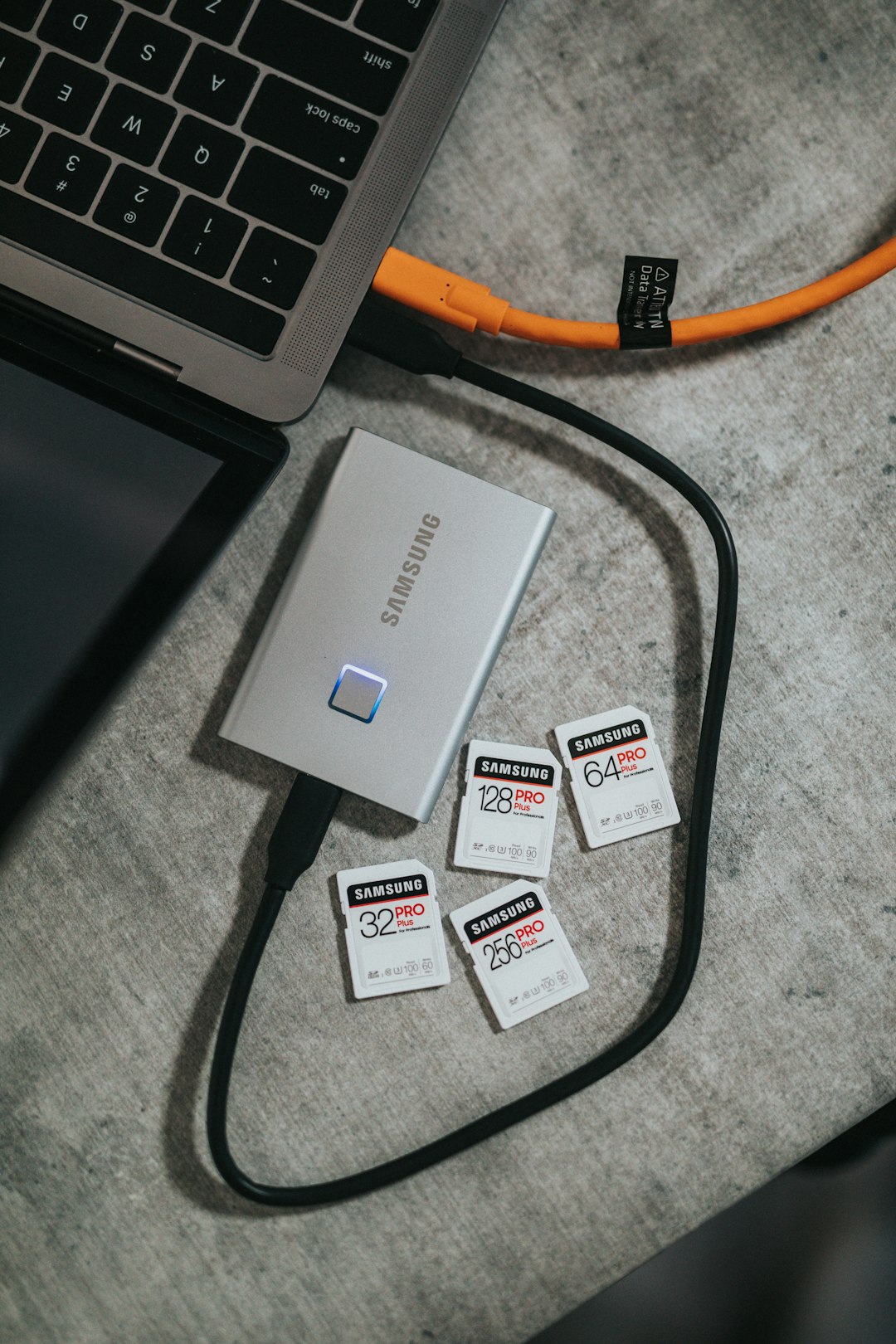
Solid-state drives (SSD) generally provide smoother playback compared to traditional hard drives (HDD). Similarly, faster SD cards outperform cheaper, slower alternatives.
5. Corrupted or Incomplete Downloads
Files that did not download correctly may appear playable but contain damaged data segments. This can result in:
- Playback stopping at specific timestamps
- Sudden frame drops
- Audio cutting out
In many cases, re-downloading the file resolves the issue immediately.
6. Background Applications Consuming Resources
Offline does not mean isolated. If multiple applications run simultaneously, system resources are divided.
Common culprits include:
- Antivirus scans
- Cloud synchronization tools
- System updates
- Browser tabs with media or scripts running
When CPU or disk activity spikes, playback responsiveness declines.
7. Outdated Drivers or Media Players
Graphics drivers, audio drivers, and media players must be updated to properly support newer file formats and hardware acceleration features.
Outdated drivers can prevent:
- GPU hardware decoding
- Proper color rendering
- Smooth frame pacing
Using an outdated video player may also limit performance optimization options.
How to Fix Offline Video Playback Lag
1. Enable Hardware Acceleration
Most modern devices include dedicated hardware for video decoding. Ensure hardware acceleration is enabled in your media player settings. This reduces CPU load and improves playback stability.
If the option is present but greyed out, updating your graphics drivers may resolve the issue.
2. Update Drivers and Software
Install the latest versions of:
- Graphics drivers
- Audio drivers
- Operating system updates
- Media playback applications
Driver updates frequently improve video decoding compatibility and stability.
3. Convert the Video to a More Compatible Format
If your device struggles with HEVC or AV1, consider converting the file to a more universally supported format such as:
- H.264 (AVC)
- MP4 container
- Lower bitrate versions
While this may slightly increase file size or reduce compression efficiency, it can drastically improve playback smoothness.
4. Lower Resolution or Bitrate
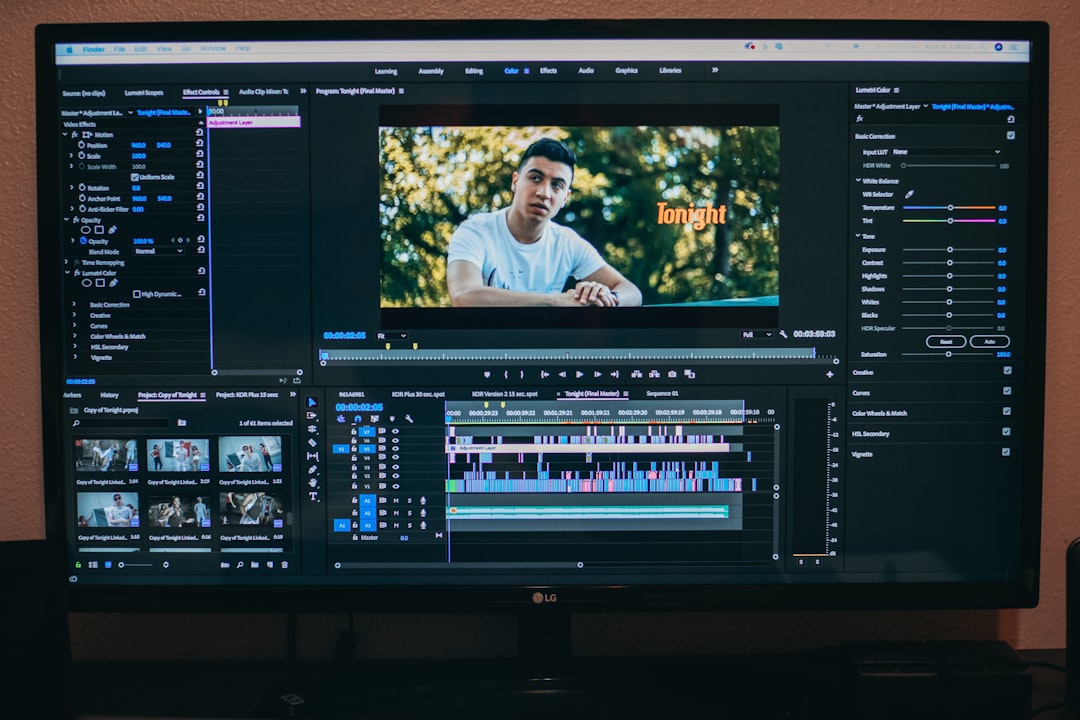
Not all devices are designed to handle 4K or HDR content effectively. Creating a 1080p version of the file often resolves persistent stuttering problems without significantly affecting viewing experience on smaller screens.
5. Free Up System Resources
Before playback:
- Close unnecessary programs
- Pause large downloads
- Disable background update processes temporarily
Monitoring CPU and memory usage through system tools can quickly reveal resource bottlenecks.
6. Check Storage Health
Perform disk checks if you suspect read errors. For removable storage:
- Test playback from internal memory
- Replace low-grade SD cards with high-speed models
- Consider upgrading from HDD to SSD
Speed and reliability of storage are critical for high-bitrate video files.
7. Re-download or Verify File Integrity
If playback consistently fails at specific timestamps, the video file itself may be flawed. Deleting and re-downloading often eliminates persistent anomalies.
Mobile Device Considerations
On smartphones and tablets, additional factors can impact playback:
- Battery saver mode: May limit CPU performance.
- Thermal throttling: Extended playback increases device temperature.
- Limited app permissions: Storage access constraints may slow file retrieval.
Switching off battery-saving features and ensuring adequate ventilation can noticeably improve playback quality.
When Hardware Upgrades Become Necessary
If persistent lag occurs despite optimization efforts, hardware limitations may be unavoidable. Consider upgrading:
- From integrated graphics to a dedicated GPU (desktop users)
- From HDD to SSD storage
- To a newer device with native HEVC or AV1 hardware support
Modern video standards increasingly rely on hardware decoding to maintain efficiency and power management.
Preventative Best Practices
To avoid future playback issues:
- Prefer widely supported formats like H.264 for compatibility.
- Avoid extremely high bitrates unless necessary.
- Keep drivers and media software regularly updated.
- Store large video files on reliable, fast storage.
- Monitor system temperatures during extended playback sessions.
These measures reduce the likelihood of encountering lag even as file standards evolve.
Conclusion
Offline video playback lag is rarely random. It almost always stems from identifiable and correctable factors—hardware constraints, codec inefficiencies, storage bottlenecks, or outdated software. By systematically evaluating your device’s decoding capabilities, storage performance, and resource usage, you can isolate the cause and apply an appropriate fix.
Smooth offline playback is achievable on most modern systems, provided that the file format matches the device’s capabilities and the system is properly maintained. Proactive updates, format compatibility awareness, and resource management remain the most reliable strategies for eliminating lag and restoring an uninterrupted viewing experience.