Top Techniques in DaVinci Resolve for Color Grading Every Editor Should Know
DaVinci Resolve has become one of the most powerful and favored platforms for professional color grading, used extensively in Hollywood productions as well as independent filmmaking. For editors and colorists striving to elevate their visual storytelling, mastering techniques in DaVinci Resolve is not just beneficial — it’s vital. Whether you’re a beginner or an intermediate editor, becoming fluent in Resolve’s grading tools can dramatically improve your deliverables.
TLDR:
Table of Contents
DaVinci Resolve offers industry-leading tools for color grading, and mastering them can give your visuals a cinematic edge. Key techniques include using primary color wheels, secondary color correction, power windows, and leveraging Resolve’s node-based architecture. Understanding color balancing, applying LUTs wisely, and using scopes effectively are also crucial. Read on to learn about the most powerful tools and workflows that every editor should incorporate into their post-production process.
1. Get Comfortable with Primary Color Wheels
The foundation of all color grading work in DaVinci Resolve starts with the Primary Color Wheels. These controls — Lift, Gamma, Gain, and Offset — allow you to shape the highlight, midtone, and shadow values of your image with exquisite control.
- Lift adjusts the darkest parts of the image. Use this to manage your shadow levels without clipping details.
- Gamma works on the midtones. This is crucial for skin tones and overall image balance.
- Gain modifies the highlights. Ideal for adjusting brighter areas like skies and reflections.
- Offset raises or lowers the overall brightness and color tint of the entire image.
Mastering the interplay among these controls will give your footage the polished and cohesive look that professionals aim for.
2. Leverage the Power of Nodes
One of DaVinci Resolve’s most defining features is its node-based architecture. Unlike layer-based systems, nodes offer a path-based structure that is both flexible and non-destructive. Each node can apply a specific grade or correction.
To get the most out of nodes:
- Use separate nodes for contrast, color balance, skin tones, and stylization to maintain control and flexibility.
- Combine serial nodes (for effects in sequence) with parallel nodes (for simultaneous grading of elements like sky and foreground).
- Use layer mixers for combining looks or creating custom blend modes across nodes.
Creating an organized node tree from the start ensures maximum efficiency in your color grading workflow.
3. Master Secondary Color Corrections
While primary grading sets the tone, secondary color corrections allow you to isolate and adjust specific elements of your image — like a blue sky or red shirt — without affecting the rest of the frame. This is executed through qualifiers and power windows.
Use the HSL qualifiers to isolate color ranges:
- Refine selections with feathering and denoise controls to avoid color halos and artifacts.
- Track elements with the built-in motion tracker if your subject is moving through the frame.
Secondary corrections turn good grading into great grading by introducing subtlety and focus to your visuals.
4. Use Scopes for Accurate Adjustments
The human eye can be deceived, especially under different lighting conditions or monitor calibrations. That’s why professionals rely on video scopes to make accurate color and exposure decisions.
The most important scopes in DaVinci Resolve are:
- Waveform for monitoring luminance (brightness) across the image.
- Vectorscope for dialing in skin tones and analyzing hue and saturation.
- Parade for separating RGB channels and identifying clipping or color imbalances.
Using these scopes in conjunction with your visual judgment helps ensure that your color grade is both artistic and technically sound.
5. Balance First — Style Second
Before diving into creative looks or stylized wants, it’s essential to balance your footage. This includes setting the correct white balance, black point, and exposure. It’s recommended to use the following steps:
- Ingest your footage and correct white balance using the RGB balance sliders or temperature controls.
- Establish contrast by setting accurate black and white points using scopes.
- Match multiple shots from the same scene to ensure consistency.
Only after this neutral correction should you proceed to stylization — preserving the integrity of your footage along the way.
6. Apply LUTs with Precision
Look-Up Tables (LUTs) can speed up the grading process, but they must be used wisely. A LUT applies a pre-defined transformation to your footage’s color values, and while convenient, can sometimes result in unwanted contrast or saturation changes.
Best practices for using LUTs:
- Apply LUTs after correcting white balance and exposure for the best results.
- Use LUTs on separate nodes so you can blend them with the original footage as needed using Opacity or Key Output Gain.
- Consider using camera-specific technical LUTs as a base, and then applying creative looks afterward.
LUTs are powerful tools — when used intentionally and in moderation.
7. Refine Skin Tones with Precision
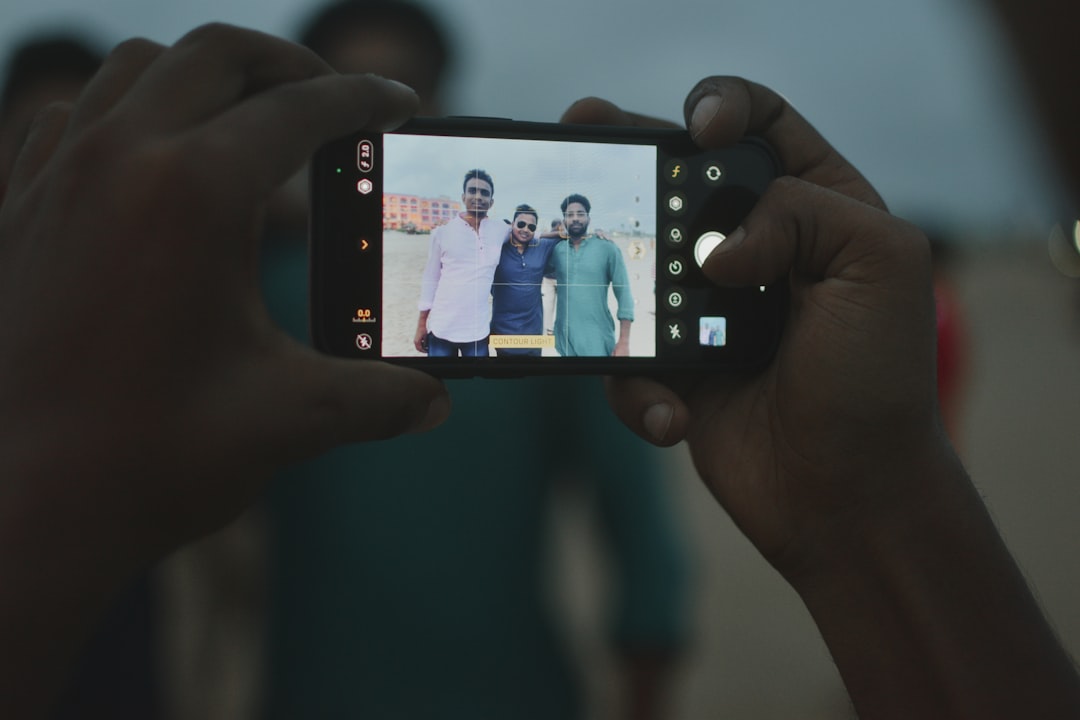
Skin tone accuracy is critical in nearly every video. A poor color grade can make faces look unnatural, even if every other aspect of the image is well-executed. Use the Vectorscope to ensure skin tones fall along the skin tone line (typically at 11 o’clock).
Technique tips include:
- Use HSL qualifiers to isolate skin tones within a separate node.
- Neutralize color casts affecting skin (green or magenta tints are common issues).
- Roll off highlights gently to preserve skin texture and avoid a plastic or overexposed look.
Dedicate a separate node for skin tone refinement — it’s often the most scrutinized part of any shot.
8. Use Power Windows for Subject Isolation
Sometimes, a small focus in a specific area goes a long way in directing viewer attention. DaVinci Resolve’s power windows allow you to draw outlines and manipulate exposure, saturation, or color within those specific zones.
Combine with tracking tools to make these masks dynamic and follow your subject as they move. For example, darken the background around an interviewee or increase the warmth on a performer’s face under stage lighting.
Power windows can subtly control visual hierarchy and help tell your story more effectively.
9. Embrace Look Development
Once your footage is well-balanced, you can move on to look development — the creative phase where color creativity comes alive.
Consider the mood, theme, and narrative when deciding on a look:
- Warm tones for romantic or nostalgic sequences.
- Cool blue tones for mystery or sci-fi elements.
- High contrast and desaturation for gritty urban drama.
Creating a “Look LUT” based on your project’s color grade can help apply this style consistently across scenes.
10. Save Your Grade as PowerGrade
After completing a shot or look you’re happy with, save it as a PowerGrade so that it can be reused across other timelines or projects. This streamlines your workflow and ensures grading consistency.
To do this:
- Right-click on the node tree in the Color page and select “Grab Still.”
- Open the Gallery and drag the still into a PowerGrade folder for later use.
This simple habit can dramatically improve your speed and standardization over time.
Conclusion
Color grading is both art and science. By mastering these top techniques in DaVinci Resolve — from primary corrections to advanced node structures and stylistic development — editors can elevate their work to professional standards. The platform offers a comprehensive suite of tools designed not just for correction, but for creativity.
Combined with a disciplined workflow and an eye for detail, these practices will enable