How to Fix BGW320-500 Passthrough LAN Not Working With TP-Link
The AT&T BGW320-500 is a high-performance residential gateway that delivers fiber internet to homes, allowing for speeds up to 5 Gbps. Many users prefer to use a third-party router such as a TP-Link device in order to take advantage of additional networking features, stronger parental controls, or more advanced Wi-Fi capabilities. However, problems can arise when setting up IP Passthrough mode, particularly when trying to get LAN connections working correctly.
TLDR: The BGW320-500 gateway requires specific settings to successfully pass through the public IP to a TP-Link router. If LAN ports are not working, it’s likely due to incorrect IP Passthrough configuration, firewall settings, or DHCP conflicts. This guide walks users step-by-step through configuring the BGW320-500 and TP-Link routers to work seamlessly. Common solutions include using the correct MAC address, disabling Wi-Fi on the gateway, and ensuring DHCP is handled by only one device.
Understanding IP Passthrough
Table of Contents
AT&T’s BGW320-500 uses a feature called IP Passthrough rather than a true bridge mode. This option allows the BGW320 to assign its public IP address to a device on the local network—usually a router like one from TP-Link. However, issues may arise that prevent LAN ports from functioning correctly on the TP-Link router after configuration.
Why the LAN Isn’t Working
A common complaint among users who set up IP Passthrough is that devices connected to the TP-Link router’s LAN ports are unable to access the internet. Several factors can contribute to this issue:
- Incorrect IP Passthrough mode or wrong MAC address selected in the BGW320 settings
- DHCP conflicts between the BGW320 and TP-Link routers
- Double NAT (Network Address Translation)
- Physical cabling issues or incorrect port usage
Step-by-Step: How to Fix BGW320-500 Passthrough LAN Not Working with TP-Link
1. Prepare Your TP-Link Router
Before diving into the BGW320’s settings, make sure you’ve done the following on your TP-Link router:
- Update the firmware to the latest version.
- Set its WAN connection type to Dynamic IP.
- Note down its WAN MAC address (you’ll need this later).
2. Connect the TP-Link Router to the BGW320-500
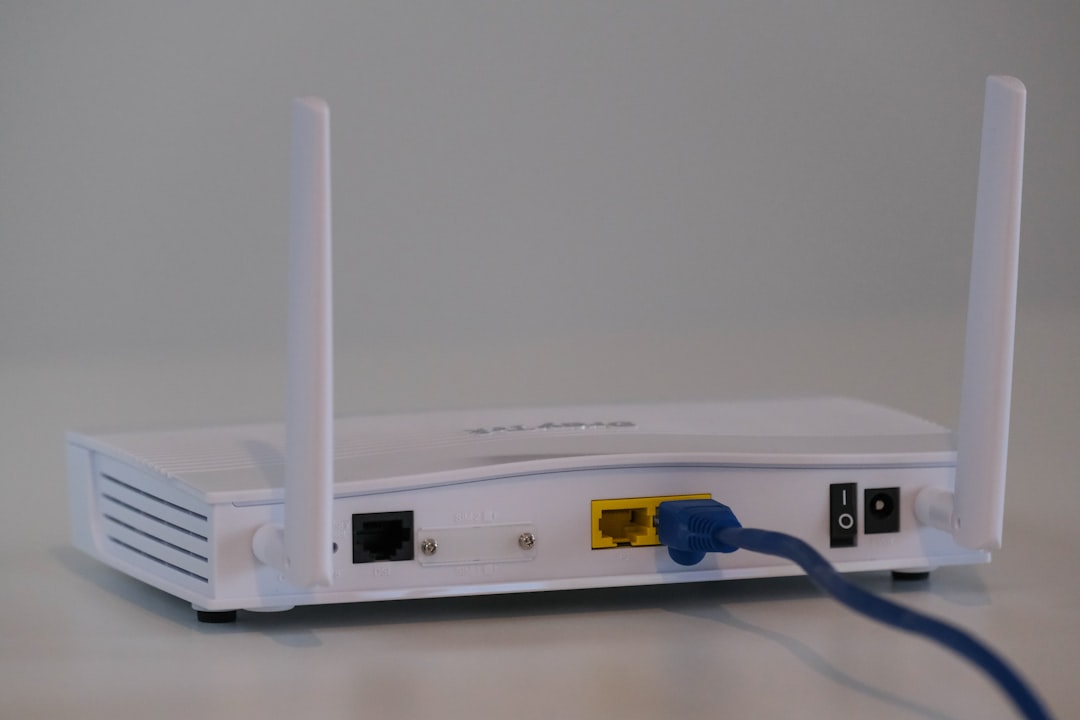
Use an Ethernet cable to connect a LAN port on the BGW320 to the WAN port of your TP-Link router. This connection will serve as the main link through which internet service is delivered.
3. Log into the BGW320 Admin Interface
From a browser on any device connected to the BGW320, go to http://192.168.1.254.
Log in using the access code printed on the sticker on the side or bottom of the device. Navigate to:
- Firewall > IP Passthrough
4. Configure IP Passthrough
In the IP Passthrough settings menu:
- Set Allocation Mode to Passthrough.
- For Passthrough Mode, choose Manual.
- Select the TP-Link router’s MAC address under Manual Entry.
- Ensure DHCP Fixed is selected in the Lease type option.
5. Disable Wi-Fi on the BGW320
To avoid interference, disable the Wi-Fi radios on the BGW320:
- Navigate to Home Network > Wi-Fi.
- Turn off both 2.4GHz and 5GHz bands.
6. Restart Both Devices
Power cycle both the BGW320 and TP-Link router. Allow them to boot fully—this may take up to 5 minutes. Once started, the TP-Link router should receive the public IP address from AT&T and begin routing traffic to its own LAN ports.
7. Check for Internet on TP-Link LAN Ports
Connect a laptop or device to one of the LAN ports on the TP-Link router. You should be able to access the internet normally. If not, check the following:
- Ensure DHCP is disabled on the BGW320—allow the TP-Link router to handle IP assignment.
- Ensure the TP-Link’s WAN IP address is public (not in 192.168.x.x or 10.x.x ranges).
8. Optional: Put TP-Link Router in Access Point Mode
For users who don’t need advanced routing features and want the TP-Link to act purely as a wireless access point:
- Disable DHCP on the TP-Link router.
- Assign it a static IP address within the BGW320’s range (e.g., 192.168.1.2).
- Connect it via LAN-to-LAN instead of LAN-to-WAN.
Advanced Troubleshooting
Enable Mac Passthrough Debug Logs
If the TP-Link still doesn’t get a public IP, turn on debug logging on the BGW320 to verify if it’s passing the IP correctly. Check in the Logs section for DHCPACK messages.
Use Static IP on TP-Link WAN
Certain setups may require you to manually enter the public IP, subnet mask, gateway, and DNS servers assigned by the BGW320.
Use Factory Reset as Last Resort
If all settings fail, consider factory resetting both the BGW320 and the TP-Link router and starting from scratch. This can resolve configuration mismatches that aren’t visible through the admin web panel.
Final Tips
- Always plug the Ethernet cable into the correct ports: BGW320’s LAN to TP-Link’s WAN (unless running in Access Point mode).
- Update firmware regularly on both devices.
- Keep a record of device MAC addresses for easier IP Passthrough management.
FAQ
Q1: Can I truly disable NAT on the BGW320?
No. The BGW320 does not support true bridge mode. It supports IP Passthrough, which effectively passes the public IP to another router but still performs some NAT.
Q2: Why does my TP-Link not receive a public IP?
This usually results from selecting the wrong MAC address in the IP Passthrough settings or using Automatic mode instead of Manual.
Q3: Can I use a mesh system with the BGW320?
Yes, and a TP-Link mesh system works well when the main unit is set as the IP Passthrough target and DHCP is disabled on the BGW320.
Q4: Should I disable the firewall on the BGW320?
No; however, you can reduce its level to Low if you’re encountering connection issues. Leave the firewall on as a precaution.
Q5: How can I tell if IP Passthrough is working?
Check your TP-Link router’s WAN IP address. If it’s a public IP, IP Passthrough is working correctly.
Q6: Do I need to reboot both routers after configuration?
Yes, always reboot both the gateway and the router after making changes for settings to take full effect.
When configured properly, the BGW320-500 and a TP-Link router can work in harmony, allowing users greater control and improved network performance. Correctly using IP Passthrough avoids most double NAT issues and ensures a seamless internet experience across both wired and wireless devices.