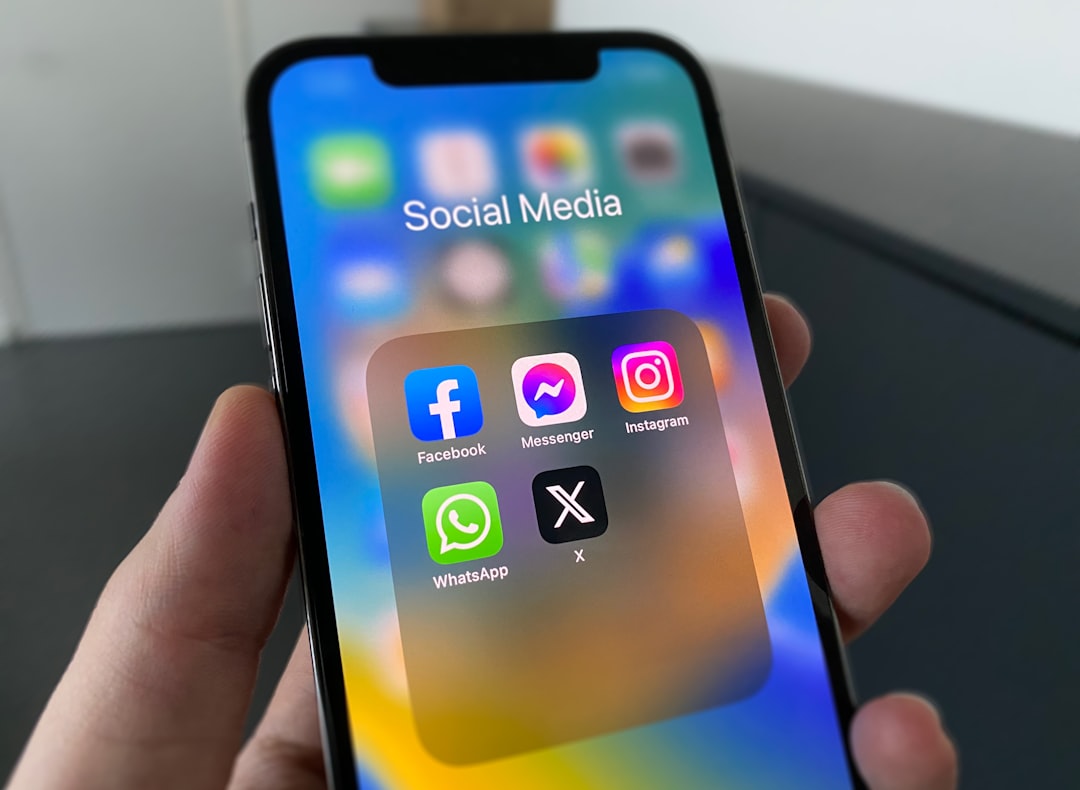
How to Remove WhatsApp from Facebook Account?
With the increasing concern for online privacy and how personal data is shared across platforms, many users are growing wary of how integrated WhatsApp and Facebook have become. Since Facebook acquired WhatsApp in 2014, the two services have increasingly shared user data to provide “better services,” but not everyone is comfortable with this level of interconnectivity. If someone wants to limit this data exchange or completely sever the link between WhatsApp and their Facebook account, taking the right steps is essential to maintain control over personal information.
TL;DR (Too Long, Didn’t Read)
Table of Contents
If a user wants to unlink WhatsApp from Facebook for privacy reasons, it’s possible—but with limitations. There’s no in-app option on WhatsApp for a full unlink, but users can control what data is shared through Facebook settings. Adjusting Facebook’s business integration settings and limiting WhatsApp-Facebook ad preferences helps. It may also be necessary to revoke app permissions and review connected apps from the Facebook Settings page.
Why Disconnect WhatsApp from Facebook?
The integration between WhatsApp and Facebook is designed to enhance services like targeted advertising, better contact suggestions, and other cross-platform features. However, this exchange of data has often raised concerns related to:
- Data Privacy: Sharing contacts, device information, and usage data.
- Security: Increased risk exposure from linked services.
- User Autonomy: Desire for separate digital identities across platforms.
Therefore, disconnecting or minimizing integration ensures users have more control over their shared data and how it’s used.
Step-by-Step Guide: How to Remove WhatsApp From Facebook Account
1. Limit Data Sharing From WhatsApp
While there’s no direct “unlink” button in WhatsApp, users can take steps to minimize data sharing.
- Open the WhatsApp app on your phone.
- Go to Settings > Privacy.
- Tap on Facebook-related features (such as “Linked Accounts” or “Share Info with Facebook” if visible).
- Toggle off any available options for sharing activity or data with Facebook.
Note that this method mostly applies to countries under GDPR or stricter data protection, where WhatsApp may prompt for consent before sharing certain data.
2. Remove WhatsApp as a Business Integration on Facebook
The most practical step in severing the WhatsApp-Facebook data link is through Facebook itself.
- Log into Facebook from a desktop browser.
- Click the small arrow in the top-right corner and go to Settings and Privacy > Settings.
- Select Security and Login or Apps and Websites depending on the version.
- Under Active Business Integrations, look for WhatsApp.
- Click Remove and confirm your action when prompted.
Once removed, Facebook will no longer be able to pull data from WhatsApp for advertising or business insights.
3. Revoke WhatsApp Permissions on Facebook Business Manager (For Business Accounts)
If someone uses WhatsApp for Business and has connected it to a Facebook page or ad account, it’s necessary to revoke those links.
- Go to Facebook Business Manager and log in.
- Navigate to Settings.
- Click Accounts > WhatsApp Accounts.
- Select the WhatsApp account being used.
- Click Remove or Disconnect next to connected assets (like pages or Ad accounts).
This is important for those using WhatsApp ads or auto-replies through Facebook tools, as it ensures no residual connectivity lingers between the two platforms.
4. Adjust Ad Preferences
Facebook may still retain certain behavioral data indirectly sourced from WhatsApp activity. Users can limit this type of tracking by adjusting advertising settings:
- On Facebook, head to Settings > Ad Preferences.
- Go to the Ad Settings tab.
- Find the section titled Data from Partners.
- Toggle off the setting that allows Facebook to use partner data to show personalized ads.
While this doesn’t completely erase usage history, it significantly reduces targeting based on WhatsApp behavior.
5. Delete WhatsApp Account (Optional)
As a final move for those who are completely done with the platform, deleting the WhatsApp account will also disable data linkage:
- Open the WhatsApp app and go to Settings.
- Tap Account > Delete My Account.
- Enter your phone number and confirm deletion.
Please remember that this action is irreversible. It will delete message history, backups, and all data associated with the account.
Limitations to Be Aware Of
While users can restrict much of the connection between WhatsApp and Facebook, some overlap is inevitable due to shared infrastructure and backend systems between both services. For example, Facebook can still learn that someone uses WhatsApp if the same phone number or email is used across platforms.
In other words, certain meta-level information (like device ID or general behavior) could still be shared under Facebook’s unified policy, especially outside jurisdictions like the EU where stricter controls exist.
Future Transparency Issues
Meta (Facebook’s parent company) has committed to improving transparency around data sharing practices. However, real autonomy still depends on consistent policy enforcement and user education.
Regulatory agencies in Europe, India, and other regions continue pressuring Meta to offer clearer opt-out options from service integrations. Until fuller options become available, the steps mentioned here present the best possible privacy strategy.
FAQs: How to Remove WhatsApp from Facebook Account
- Q: Can I completely unlink WhatsApp from Facebook?
A: Not entirely. While you can disconnect business integrations and limit data sharing, backend connections still exist within Meta’s ecosystem. Full unlinking requires deleting the WhatsApp account. - Q: Is this available in every country?
A: No. Options like “Don’t Share My WhatsApp Info with Facebook” are usually only available in GDPR-compliant regions like the EU. - Q: Will removing the integration affect my Facebook Ads or campaigns?
A: Yes, if you’re using WhatsApp for Business or customer chat on ads. Removing the link disables those features. - Q: Can Facebook still access my data after I remove the integration?
A: Potentially. Some historical data may still be stored, and cross-platform tracking like shared cookies or similar device IDs may continue. - Q: How do I know if WhatsApp is linked with Facebook?
A: Check Facebook’s “Business Integrations” section or look in the WhatsApp “Settings” under data sharing options to confirm connectivity.