How to Install the Brave Browser on a Chromebook
Brave is a privacy-focused web browser that offers faster browsing, built-in ad blocking, and the ability to earn cryptocurrency while surfing the web. If you’re using a Chromebook and tired of mainstream browsers tracking your every move, Brave might just be the upgrade you need.
TLDR: Installing Brave on a Chromebook isn’t as straightforward as on Windows or macOS, but it’s still fairly simple. You can do it via the Linux (Beta) feature on your Chromebook. Once you enable Linux, it’s just a few terminal commands away. The Brave browser brings speed, security, and privacy all in one highly efficient package.
Why Use Brave on a Chromebook?
Table of Contents
The Chrome browser has long been the default on Chromebooks. While it’s deeply integrated with ChromeOS, it’s not your only option. Brave is designed with performance and privacy in mind. Here’s why you might want to install Brave:
- Enhanced Privacy: Brave blocks trackers, fingerprinting scripts, and intrusive ads by default.
- Speed: With fewer ads and background scripts, sites load significantly faster.
- Built-In Tor Mode: Browse anonymously with Brave’s incognito windows powered by Tor.
- Earning Potential: Opt-in to view privacy-respecting ads and earn Basic Attention Tokens (BAT).
Prerequisites: What You Need
Before jumping into the installation, there are a few things you’ll need to check or enable on your Chromebook:
- Your Chromebook should be running ChromeOS 69 or later.
- Linux (Beta) must be enabled on your device.
- A stable internet connection, as the installation involves downloading packages.
If your Chromebook meets these requirements, you’re ready to dive in!
Step 1: Enable Linux (Beta) on Your Chromebook
Linux (Beta), also known as Crostini, allows you to run Linux apps on ChromeOS in a secure container. Many third-party apps—including Brave—are installed this way. Here’s how you enable it:
- Click the Time in the bottom-right of your screen and go to Settings.
- Scroll down and click Developers.
- Click Turn On next to Linux (Beta).
- A setup window will appear—click Install and wait for the process to complete.
Once you’ve enabled Linux, a Terminal app will appear in your app drawer. It’s like your command center for all things Linux on ChromeOS.
Step 2: Set Up Brave’s Repository
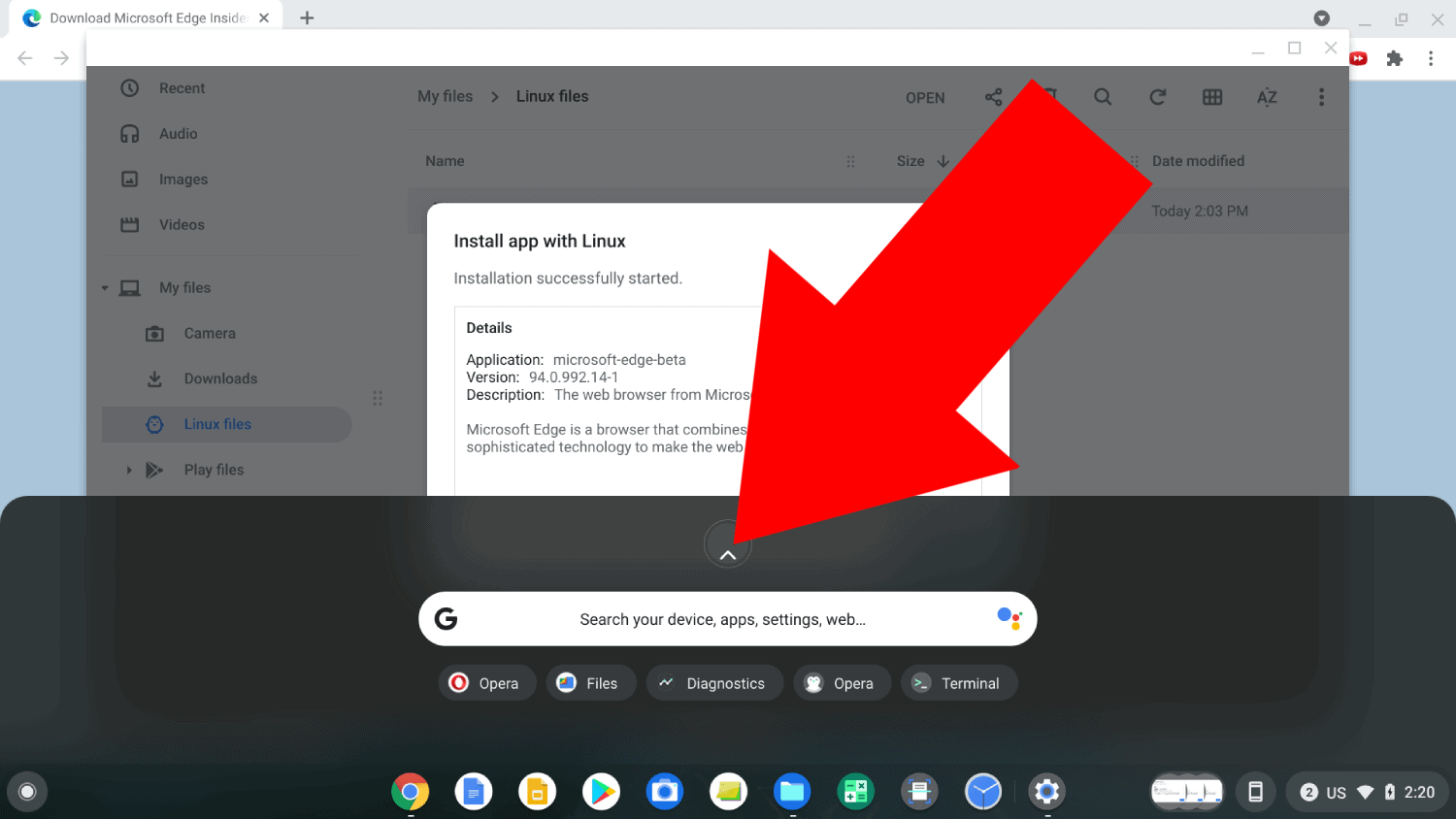
To install Brave, you need to add its official repository to your Linux system. This ensures you’ll always get the latest updates delivered straight from Brave. Open the Terminal and run the following commands one by one:
sudo apt install apt-transport-https curlsudo curl -fsSLo /usr/share/keyrings/brave-browser-archive-keyring.gpg https://brave.com/signing-key.gpgecho "deb [signed-by=/usr/share/keyrings/brave-browser-archive-keyring.gpg arch=amd64] https://brave-browser-apt-release.s3.brave.com/ stable main" | sudo tee /etc/apt/sources.list.d/brave-browser-release.listNote: Copy and paste these commands exactly. Any errors could lead to dependency issues or incomplete installations.
Step 3: Install Brave Browser
After setting up the repository, it’s time to install the browser itself.
sudo apt updatesudo apt install brave-browserThis process can take a few minutes depending on your internet connection and Chromebook’s hardware specs. Once completed, you’ll find Brave in your app drawer under the Linux apps section.
Step 4: Launching and Setting Up Brave
Click on the Brave icon from the Linux Apps folder to launch it. The first time it starts, you might notice it takes a bit longer—especially if your Chromebook has modest specs. That’s normal.
Upon launch, you’ll be greeted with a setup wizard where you can:
- Import bookmarks and settings from another browser.
- Customize your preferred levels of blocking for ads and trackers.
- Sign into your Brave Rewards account (optional).
Once done, Brave will operate almost like any other app on your Chromebook. You can pin it to the shelf or set it as your default browser if you wish.
Tips for a Smoother Brave Experience on Chromebook
While Brave works well out of the box, here are a few tips to enhance your experience:
- Allocate More Disk Space to Linux: Go to Settings > Developers > Linux and increase the disk size if you notice lag.
- Keep Linux Updated: Regularly run
sudo apt update && sudo apt upgradein Terminal to ensure all apps—including Brave—are up-to-date. - Enable Hardware Acceleration: This can boost Brave’s performance but may vary depending on your Chromebook model.
Uninstalling Brave
If you ever decide to remove Brave from your Chromebook, here’s how to do it:
sudo apt remove brave-browserYou may also remove the repository file if you’re certain you won’t reinstall in the future:
sudo rm /etc/apt/sources.list.d/brave-browser-release.listsudo apt update
Additionally, feel free to delete the key file:
sudo rm /usr/share/keyrings/brave-browser-archive-keyring.gpgKeep in mind this won’t remove any Brave-related files from your Linux environment unless you delete them manually.
Frequently Asked Questions (FAQs)
1. Can I install Brave without enabling Linux?
Not at the moment. Unlike some Windows or Android apps, there’s no Chrome Web Store or Android version of Brave available for all Chromebooks. Enabling Linux is currently the most stable and supported method.
2. Will Brave get automatic updates on my Chromebook?
Yes, as long as your Linux container is updated regularly using sudo apt update && sudo apt upgrade.
3. Does Brave support extensions?
Absolutely. Brave is built on Chromium, the same engine as Google Chrome, so most Chrome Web Store extensions work flawlessly.
4. Is it safe to use Brave over Tor on a Chromebook?
While Brave’s Tor mode adds an extra layer of anonymity, it’s not a perfect substitute for using the full Tor browser. Great for casual private browsing, but not for high-security needs.
Conclusion
Installing Brave on your Chromebook might take a few extra steps compared to traditional downloads, but the rewards are worth it. You get a faster, more private browsing experience with the additional bonus of earning crypto, all while escaping the tracking-heavy nature of conventional browsers.
So if you’re ready to take control of your online experience and elevate your Chromebook’s capabilities, Brave is a bold and brave move—no pun intended!